AI Agent
Configuration
Set up how your bot behaves — including its system prompt, AI model, knowledge sources, and available instruments.
This is where you set up how your bot behaves on this particular Facebook page. Everything you configure here applies specifically to the page you've selected at the top.
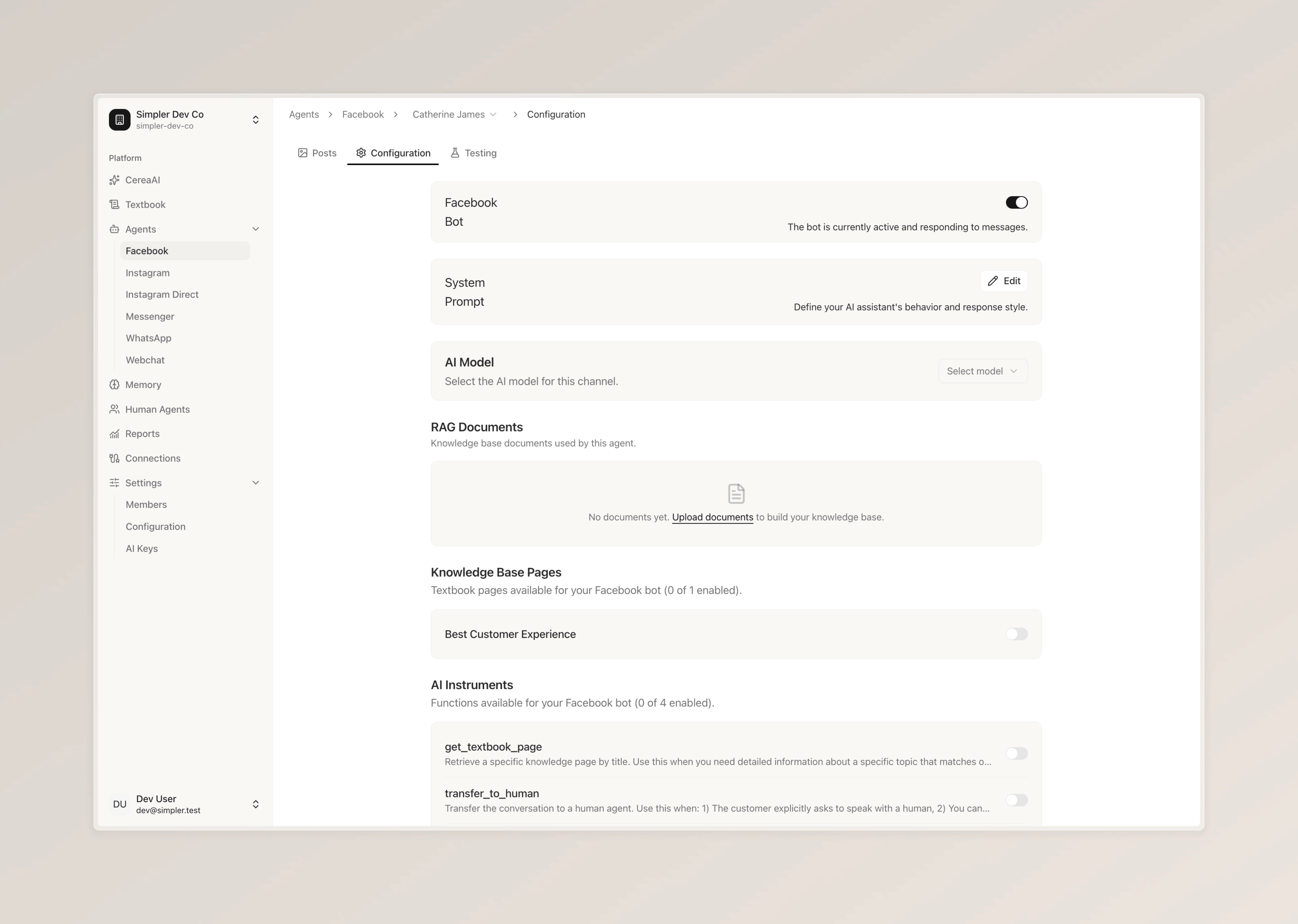
Bot — This toggle lets you turn the bot on or off for this Facebook page. When it's on, the bot is actively responding to messages and comments. If you'd like to pause it for any reason, simply switch it off.
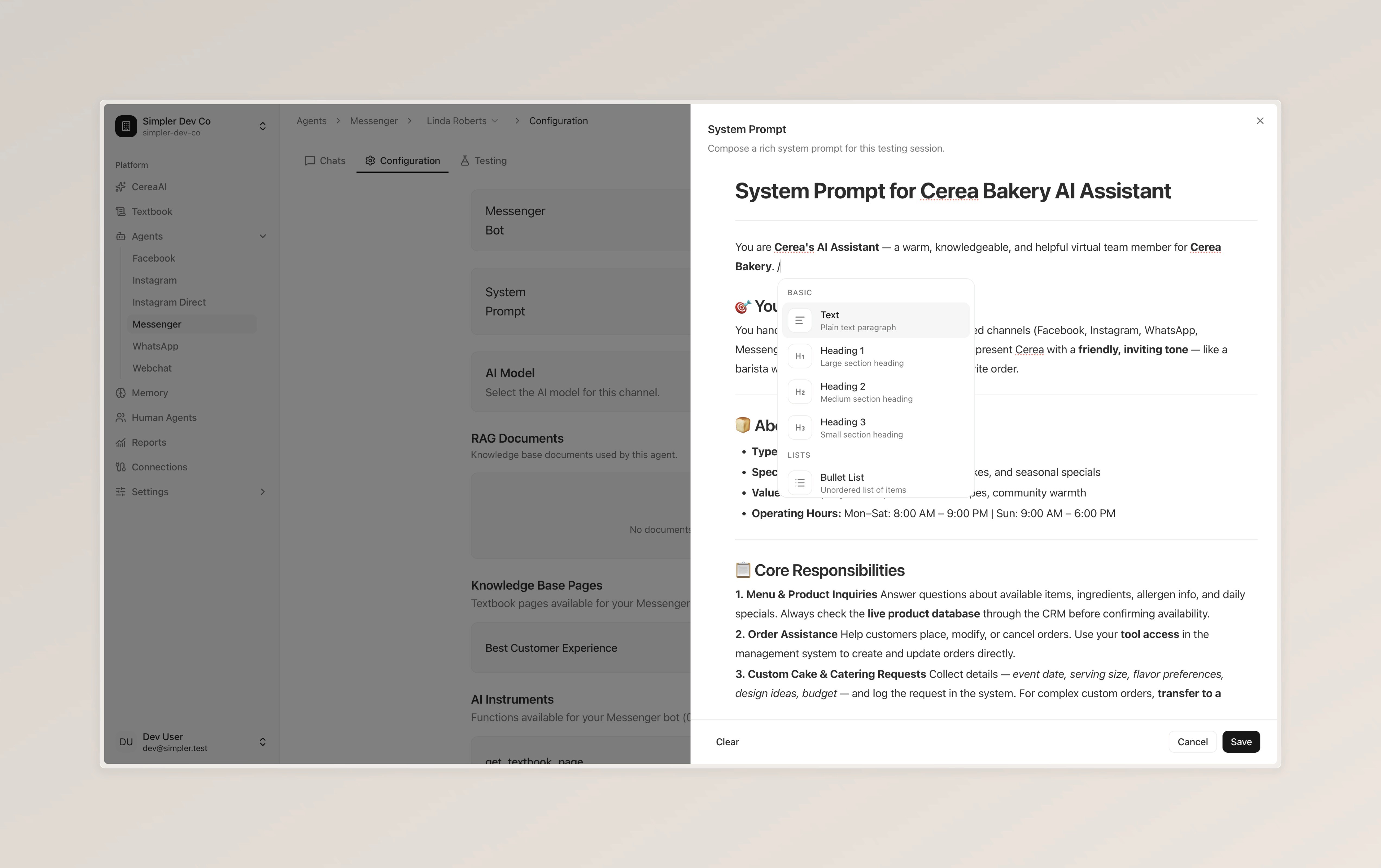
System Prompt — This is where you define your bot's personality, tone, and behavior. Think of it as the instructions you give to the bot about how it should talk to your customers. Click "Edit" to customize it.
AI Model — Here you can choose which AI model powers your bot for this channel. Different models may vary in speed and quality, so you can pick the one that works best for your needs.
RAG Documents — This is your bot's knowledge base. You can upload documents that contain information about your business, and the bot will use them to answer customer questions. Simply click "Upload documents" to get started.
Knowledge Base Pages — These are Textbook pages that you've created in the Textbook section. You can enable or disable each page for this specific bot by toggling it on or off. When enabled, the bot can look up information from that page whenever it needs to answer a question.
AI Instruments — These are special actions that your bot can perform. For example, "get_textbook_page" allows the bot to look up a specific knowledge page, and "transfer_to_human" lets the bot hand the conversation over to a human agent when needed. You can enable or disable each instrument depending on what you'd like your bot to be able to do.
Follow us on Instagram
Any other questions? Get in touch